


The square loses the subject.
A wide photo can look right in a banner and wrong in a card. Give the square thumbnail an intentional frame.
Choose what stays in the frame. Crop individual WordPress image sizes, set a focal point, and fine-tune the awkward ones with MediaToolkit.
Built with love for

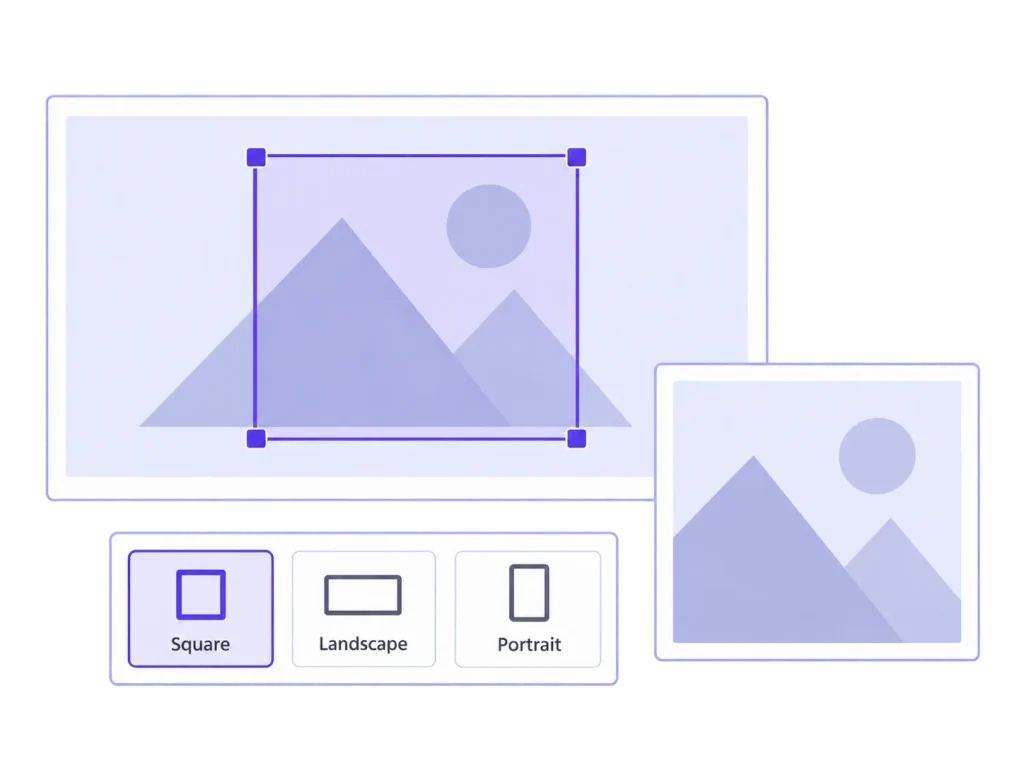
A good source image still needs the right composition for each place it appears.
A wide photo can look right in a banner and wrong in a card. Give the square thumbnail an intentional frame.

The subject is not always in the middle. Tell the crop where the important part of the image sits.

A useful starting point will not suit every composition. Keep manual control over individual thumbnail sizes.
Work on the image variants your WordPress layouts actually use.
Open the image in MediaToolkit and select the size you want to adjust. Matching aspect ratios are grouped to make related variants easier to review.
Crop Thumbnails
Place the focus on the subject and inspect the available previews. Use the resulting crops as a starting point across different image sizes.
Focal Point Cropping
Adjust individual crops where a different composition works better, then save the result. Your source image remains available for other crops.
Manual crop control
MediaToolkit changes image files for registered sizes. Your theme still decides which size it displays and may apply its own CSS cropping.
Two common editing tasks, using the same source image.
A staff portrait may need a tight square for a team grid and more space for a profile header. Set each thumbnail crop around the composition you need, rather than preparing and uploading a separate source for every variant.
After saving the crop, open the actual page and inspect that placement. If it still shows a different frame, check which registered image size the template requests and whether its display styling crops the image again.
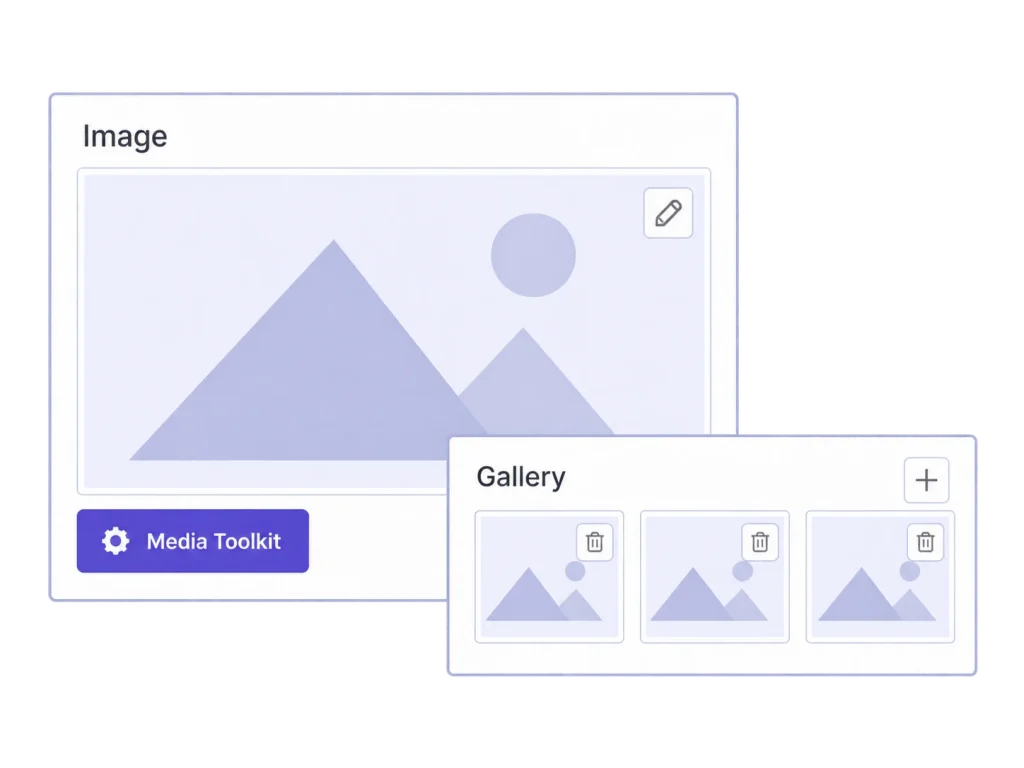
Supported WordPress editor and ACF image or gallery contexts give you access to the toolkit. Developers can narrow the crop sizes shown for an ACF field, so editors can focus on the variants relevant to that placement.
For a supported ACF image field, choose the relevant crop sizes during development. A field intended for a portrait can present those choices clearly, while another field can expose the sizes needed for a wider placement.
No. Thumbnail cropping keeps the source image intact. Resize and Replace are separate tools with different effects on originals and existing crops.
Yes. Use a focal point to preview available sizes, then keep manual exceptions where a particular thumbnail needs a different composition.
It edits supported WordPress image sizes. A theme or builder may choose another size or crop the displayed image with CSS; those display rules still need checking.
MediaToolkit regeneration can reuse valid saved MediaToolkit crop and focal-point recipes. Changed sources or size definitions may prevent a recipe from producing the same result.
No. You choose the focal point and crops. It is a practical way to control thumbnail composition inside WordPress, without automatic subject detection.
Related workflows: Image sizes and regeneration · MediaToolkit for publishers.