


The key detail leaves the crop.
A photograph tells the story, until a tight thumbnail drops the person or detail that made it useful.
Give article images the framing and image texts they need. MediaToolkit helps editors prepare thumbnails, review captions and alt text, and organize a growing WordPress media archive around the work of publishing.
Built with love for

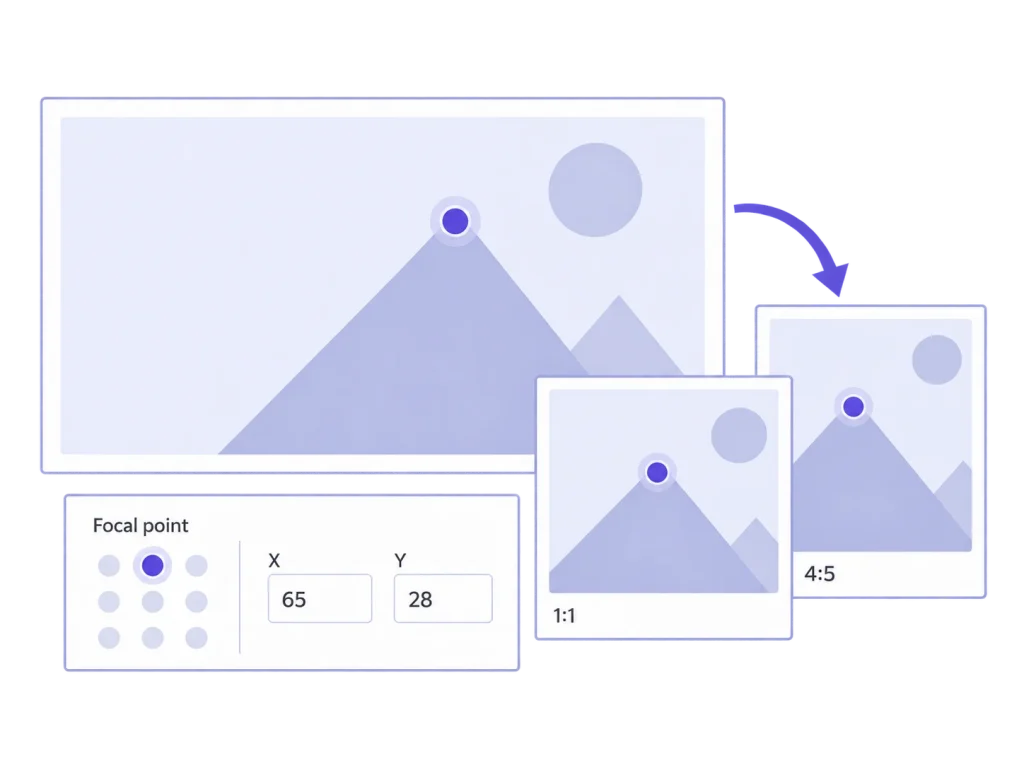
The homepage card, article header, and archive listing each put a different demand on a photograph.
A photograph tells the story, until a tight thumbnail drops the person or detail that made it useful.

Captions, titles, descriptions, and alt text sit across a collection of attachments. Checking them one by one slows the review.

The right photograph may already be available. Finding it gets harder when every new upload joins the same undifferentiated list.
Put media checks alongside the article preparation your editors already do.
01 / Before publication
Preview the story's subject across thumbnail shapes. Use a focal point as a starting position, then save individual crops where a specific placement needs a more deliberate frame.
02 / During image review
Search attachments and filter empty fields. Edit the titles, alt text, captions, and descriptions that need attention, with a shared view of the images being prepared for a story or series.
03 / As the archive expands
Use categories and subcategories for subjects, desks, or recurring series. Assign an attachment to several categories when it belongs in more than one editorial context, including through bulk assignment.
Your team chooses the image, writes its text, and checks the context. MediaToolkit provides the tools for that work.
Work on the thumbnail and attachment record, then review the published placement.
A wide photograph may also need a square archive thumbnail or a tighter card crop. Preview the available sizes, preserve a useful focal point, and make manual exceptions. Generated crops do not control a theme's additional CSS cropping or an external social platform's preview.
Check the placements that introduce the article as well as the image inside it. A portrait, headline card, and archive listing can ask different things of one photograph. Use the thumbnail previews to make those composition decisions before checking the actual pages.
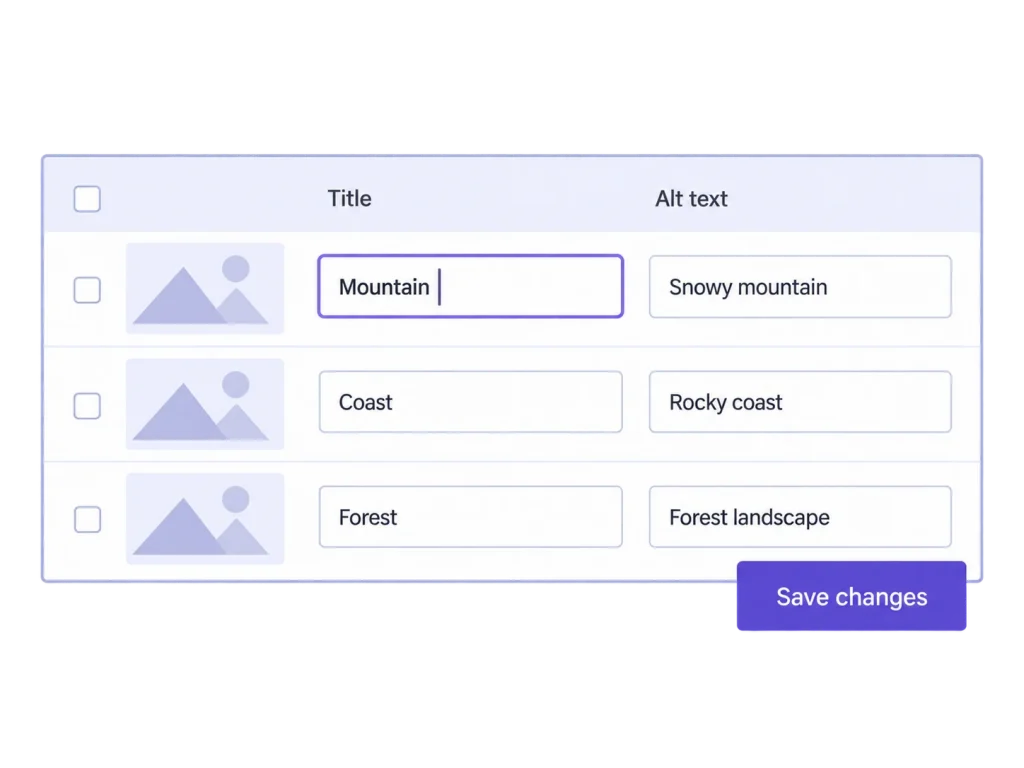
Review captions and alt text alongside titles and descriptions in one table. Save the fields you edit together. Changes update Media Library records; existing article blocks may already store their own captions and alt text, so check those article placements separately.
Use the preview to check that the words describe the image your readers will encounter. A caption can carry context that differs from useful alt text. Review the fields individually instead of repeating the same sentence across every available text box.
Yes, when those placements use separate generated WordPress image sizes. MediaToolkit supports manual crops by size and focal points with individual exceptions. Review the actual theme placement, since additional CSS cropping can affect what appears.
You can review and edit the caption and description fields in Image Texts, including credit wording your team stores there. MediaToolkit does not verify image rights or provide a separate licensing, attribution, or editorial approval system.
No. Your editors write the text. The table, search, and empty-field filters help them review and update records together. Context still matters: text already stored in an article needs its own check.
Media categories organize attachments in the media library. They do not replace article categories, reorganize posts, or move files into physical folders. One media item can have several category assignments.
Regenerate, Resize, and Optimize support bulk jobs with progress controls and saved jobs. Processing depends on the server and WordPress's scheduled task system. Keep backups before destructive changes, and review the operation before applying it to a large selection.
Related workflows: Thumbnail crops and focal points · Bulk edit image texts.