


The portrait loses its head.
A new team photo lands in a card designed around a different image. Someone needs to fix that crop.
Give your team practical tools for the image work behind every client website. Crop thumbnails, review image texts, and handle replacements inside WordPress, from the first handover to the next care request.
Built with love for

A client website needs media tools long after the design has been approved.
A new team photo lands in a card designed around a different image. Someone needs to fix that crop.

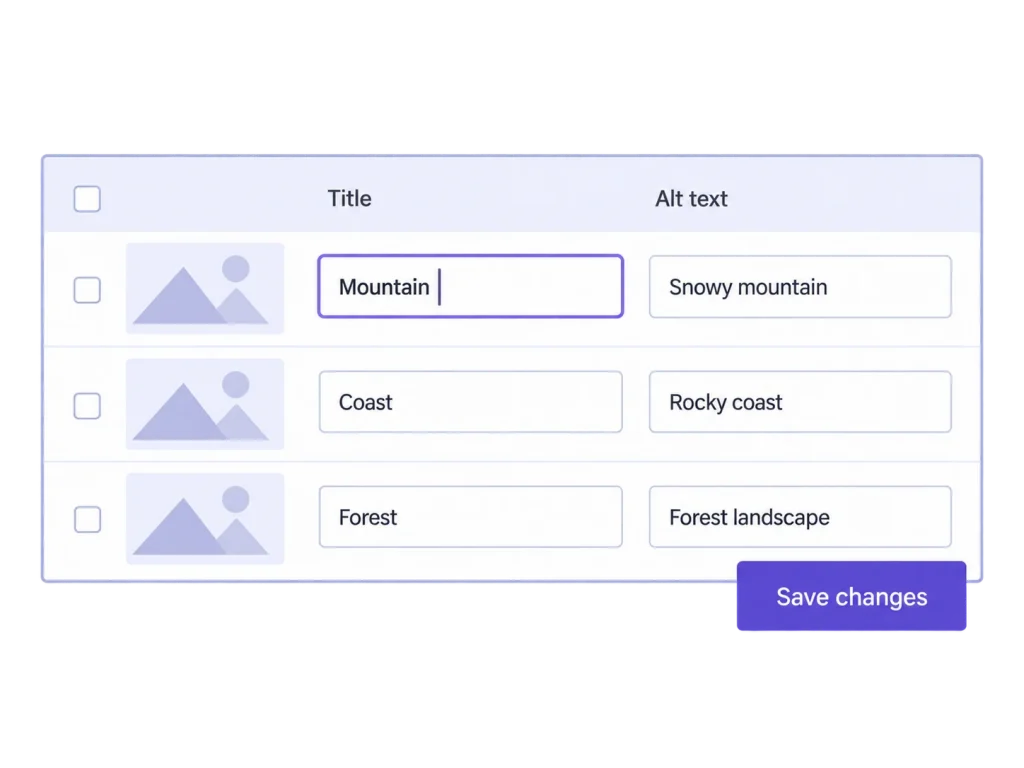
Image titles, captions, and alt text arrive unevenly. Reviewing each attachment separately turns a checklist into a chore.

A refreshed logo or new photograph arrives after launch. You need a deliberate replacement, with the existing media item retained.
Use the same core tools at the points where an agency takes responsibility for a client's images.
01 / Before handover
Filter for empty image text fields, review the attachments in one table, and organize reusable assets with categories. Media Insights adds a measured view of large files and missing alt text.
02 / During design QA
Review registered image sizes, add custom sizes where appropriate, and adjust thumbnail framing. Generate missing variants for older uploads when a new layout calls for them.
03 / During ongoing care
Replace supported images in the same format while keeping their main URLs and media texts. Review the regenerated thumbnails and new framing before considering the request finished.
MediaToolkit grew out of managing 100+ WordPress websites. The goal: useful tools for the recurring media jobs that come with looking after them.
Start with the attachments, then check their actual placements on the website.
Search image records and filter empty fields. Review titles, alt text, captions, and descriptions together, edit the gaps, and save changes in one pass. These updates affect Media Library records; text already saved in posts or blocks needs a separate check.
Start with the attachments likely to return in campaigns, team pages, and recurring content. Search their filenames or existing text, then review the actual previews. An empty field identifies something to inspect; your team decides which wording fits the image and its use.
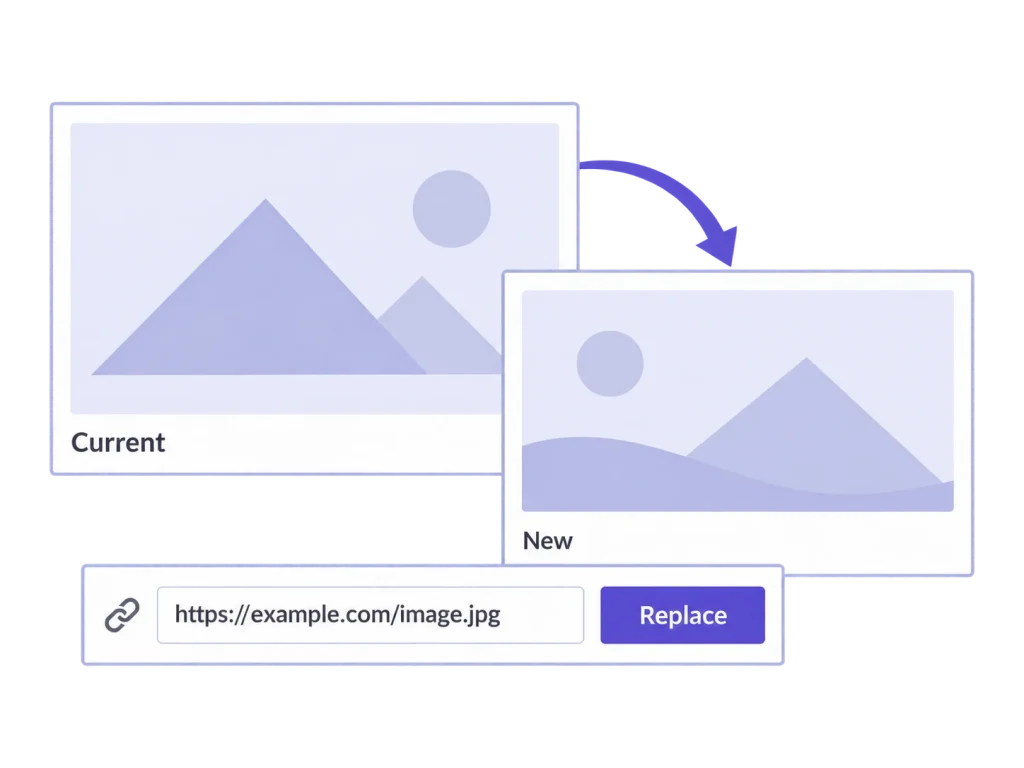
Preview the old and new files before saving a replacement in the same supported format. The attachment ID, main URL, and media texts remain. Thumbnails are rebuilt and custom crops are replaced, so check framing and any external caches afterward.
Check the attachment and its important placements before replacing it. A shared image can appear beyond the page mentioned in the request. Keeping its identity is useful precisely because existing references remain, so include those uses in the final review.
Choose a yearly plan for one, up to five, or up to 25 activated websites. Subfolder sites under the same main website address share its license state. Separate hosts, including subdomains and mapped domains, use their own activation state and applicable website places. Separately activated staging sites count too. Contact us if your setup needs more.
Yes. Enable the media modules that make sense for each website. Disabled modules stay unloaded. This gives you a practical way to tailor the toolkit without presenting every client with the same set of enabled tools.
The tools run inside each WordPress installation. Network Settings can apply a shared template within a WordPress Multisite network; it does not provide a management dashboard for unrelated client installations.
MediaToolkit supports ACF image and gallery workflows, with developer configuration for the crop sizes shown in a field. Check the specific editing context your client uses; available tools depend on the image, permissions, and enabled modules.
Email support covers setup and plugin problems during your paid subscription. Media Insights and the same plugin functionality are included in every plan. Support does not include a guaranteed response time or custom development for a client project.
Related workflows: Bulk edit image texts · WordPress Multisite settings.