
Crop Thumbnails
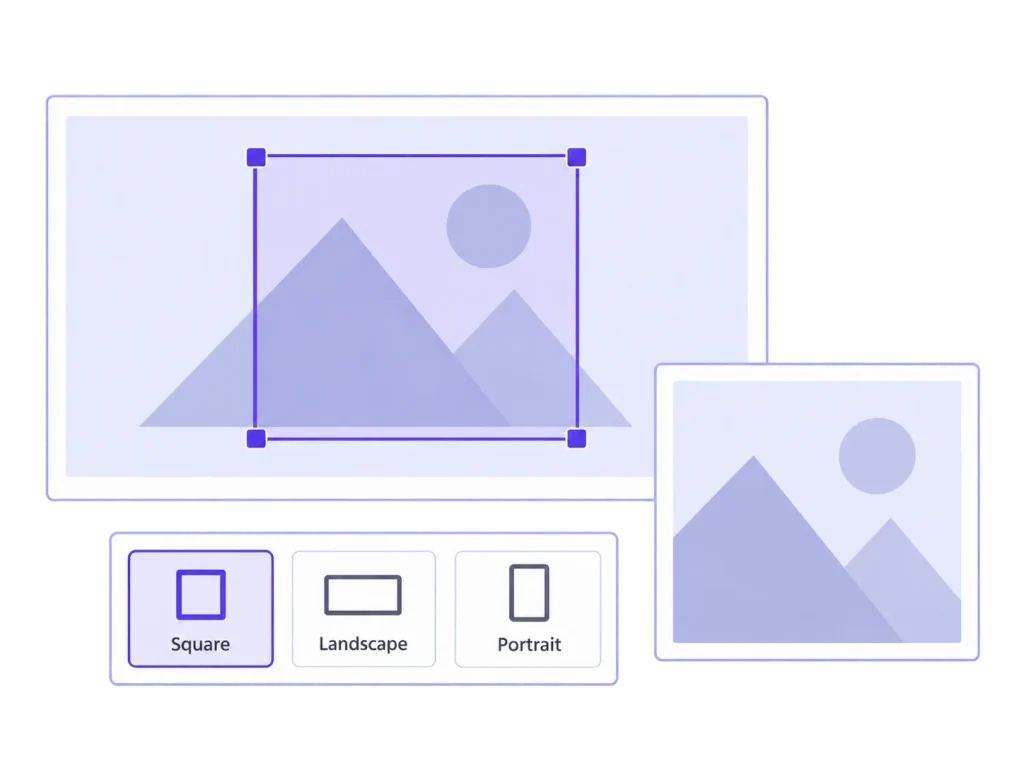
The face belongs in the thumbnail. Choose the crop for each image size, set a focal point, and fine-tune individual sizes when the composition needs it.
The face belongs in the thumbnail. Choose the crop for each image size, set a focal point, and fine-tune individual sizes when the composition needs it.
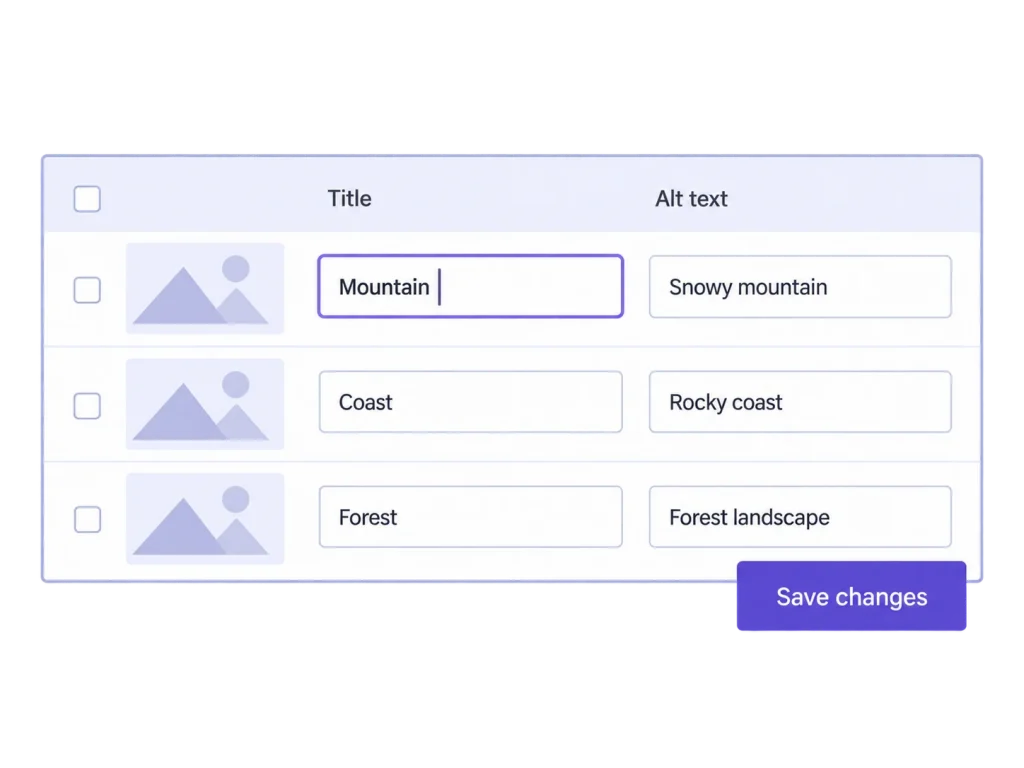
Your image texts. One table. Edit alt text, titles, captions, and descriptions across multiple images, then save your changes together. Updates apply to Media Library records, not text already saved in posts.
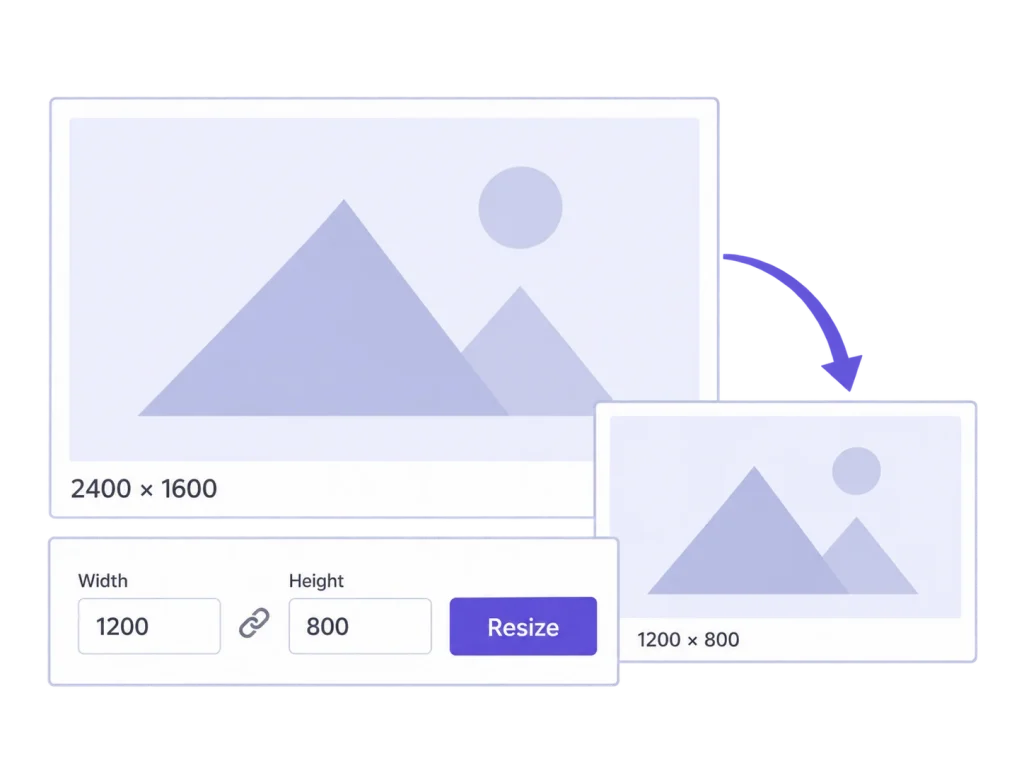
Put oversized uploads on a budget. Set maximum dimensions and an optional file size limit for individual images, bulk jobs, or new uploads. Stored originals are reduced too, so keep a separate backup if you need full resolution.
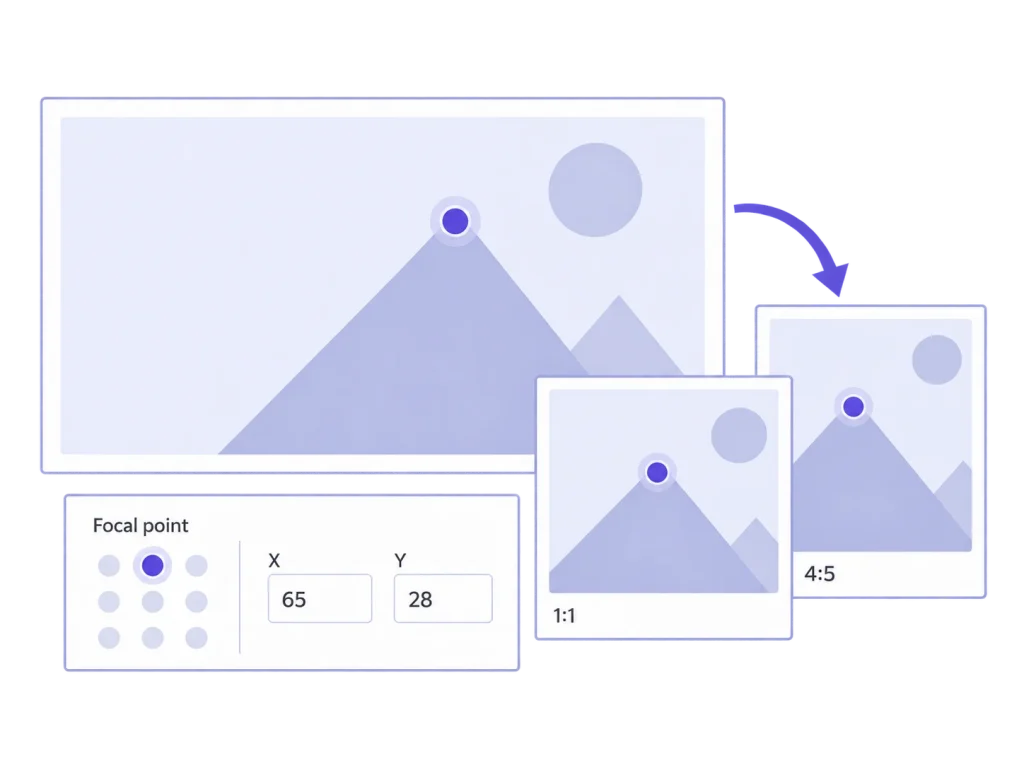
A portrait, a square card, and a wide banner ask different things of the same photo. Set the crop for each thumbnail size in WordPress, or apply one crop to sizes with the same aspect ratio. Your original stays intact.
Set a focal point and preview how it lands across your image sizes. Adjust individual thumbnails when the composition needs more attention. Manual crops take priority, so you can combine a useful starting point with precise control.
A new layout needs the right image sizes behind it. Generate missing thumbnails or rebuild selected sizes, individually or in bulk. MediaToolkit reuses its valid saved crops and focal points as it rebuilds.
Edit alt text, titles, captions, and descriptions across multiple images. Search by filename or text, filter for empty fields, and save your edits together. Changes update Media Library records; text already saved in posts stays unchanged.
Set maximum dimensions and an optional file size limit. Resize an image, process older uploads in bulk, or apply your limits automatically to new uploads. Stored originals are reduced too, so keep a separate backup for full-resolution files.
Upload a replacement in the same supported format and compare it with the current image before saving. Keep the main URL, attachment ID, and image texts. Thumbnails are rebuilt with the new image; custom crops are replaced.
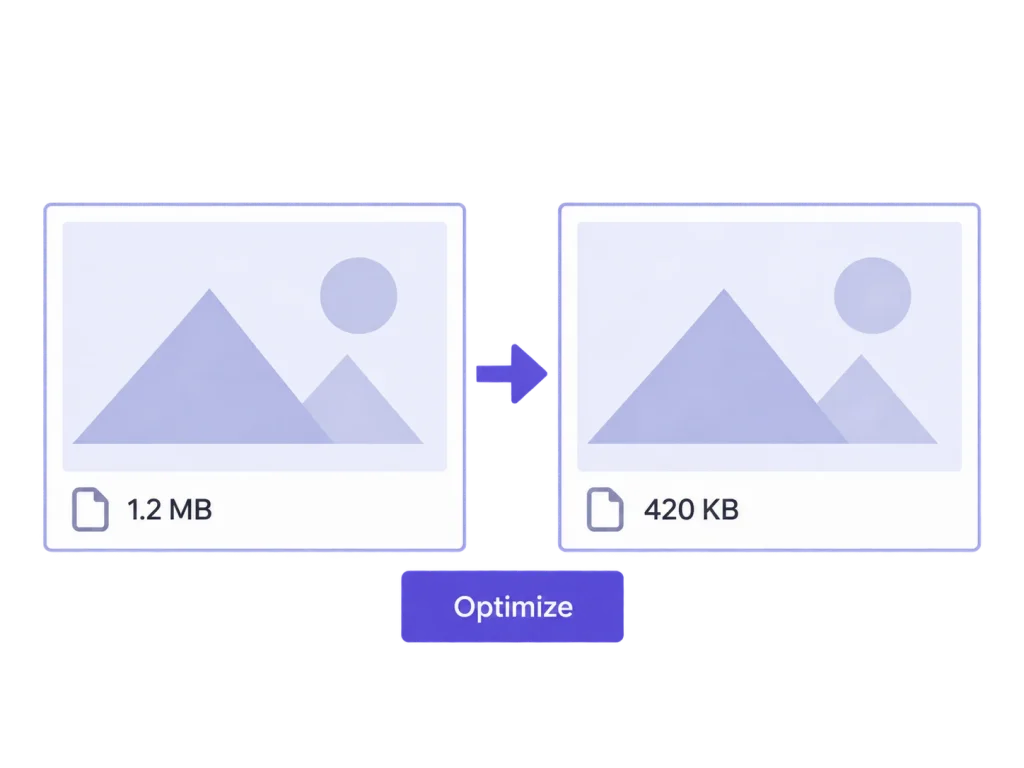
Optimize selected image sizes locally, individually or in bulk. Keep their dimensions and crop geometry, review the measured file savings, and restore eligible files from optimization backups. Results depend on your images, settings, and server.
Generate additional WebP and AVIF versions for selected image sizes when your server supports them. The source format stays in place. This creates the files; automatic delivery of those versions on your website is not included yet.
Give each layout a named image size with its own dimensions and crop settings. Review sizes from WordPress, your theme, and other plugins, then choose which get generated. Changes apply to future uploads and explicit regeneration.
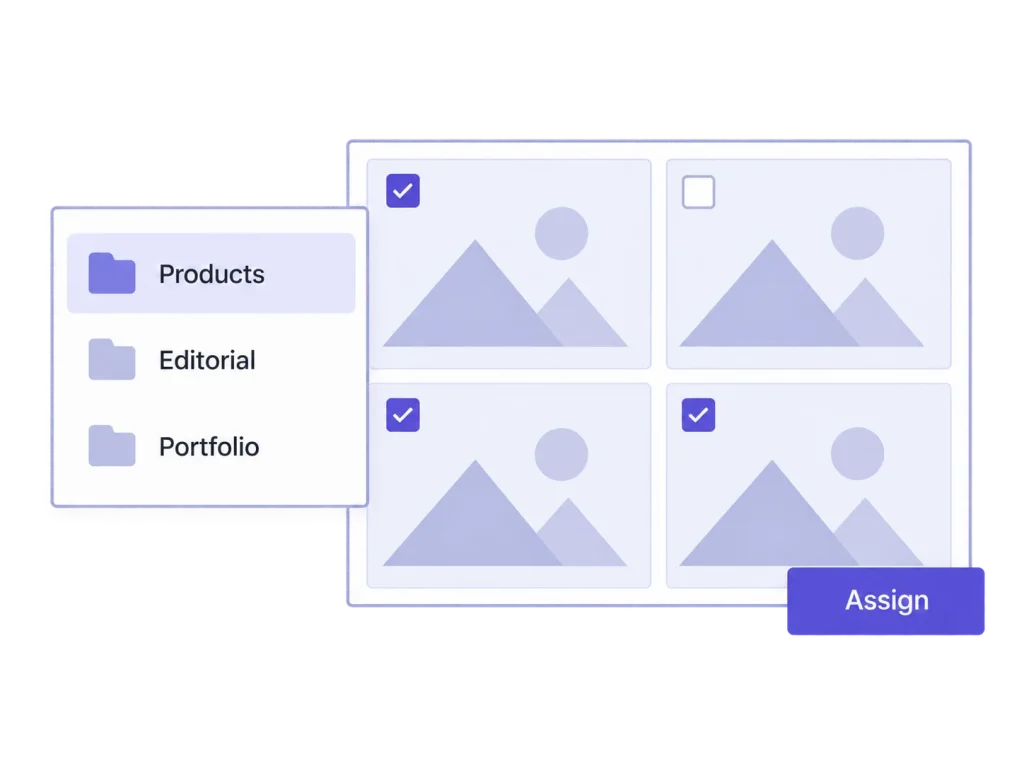
Give campaign assets, team photos, and product shots categories that match the way you work. Use subcategories, assign a file to several categories, and update groups of items in bulk. Filter your media when it's time to find the right file.
See which images take up the most space before you start resizing or optimizing. Media Insights measures your media files, lists the largest images, and flags missing alt text or local files for review.
Open the toolkit from the Media Library, supported WordPress editor contexts, and ACF image or gallery fields. Keep cropping, replacement, resizing, and other enabled tools close to the image you're already working on.
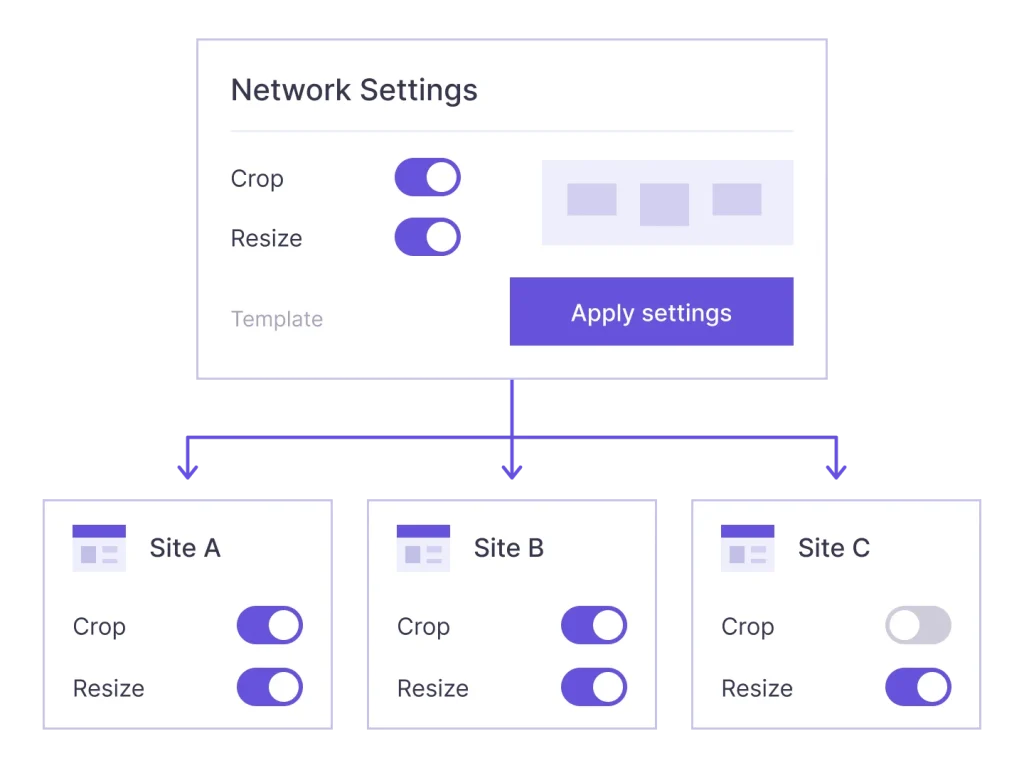
Define your media setup once in WordPress Network Admin: enabled tools, image sizes, resize rules, and more. Apply the saved template to all active sites in your network when you're ready. Add new sites to the same setup with your next rollout.
Enter your license key in Network Admin and start a separate activation rollout across your active sites. Follow its progress without opening every site's settings. Activations follow your plan's website allowance.
The settings rollout copies your template once. Each site keeps its own media library and can adjust its settings afterwards. You decide when to apply the network template again.
Give repeat work a single starting point. Regenerate, resize, or optimize groups of images with progress tracking, pause and resume controls, and a history of completed jobs.
Set the limits before the next oversized upload. Apply your resize rules automatically to supported new uploads, including their stored originals.
Fill the gaps. Keep what's there. Create missing thumbnail sizes while leaving existing thumbnail files unchanged.
Choose what gets generated. Disable individual thumbnail sizes and control WordPress's automatic scaled copy. Existing files stay in place.
Set your JPEG quality in one place. Choose a shared quality setting for JPEG output generated locally through WordPress's image tools.
Work where the image already is. Open the toolkit from the Media Library and supported block editor contexts, with the available tools for the selected media item.
Your toolkit. Your selection. Enable the media modules you need for the site. Disabled modules stay unloaded.
Know what your server can handle. Test image-processing capabilities and file access from WordPress, with technical details available when you need them.
One network. Less repeat setup. Apply a shared settings template across your active sites and roll out licenses from Network Admin. Each site keeps its own media library and can still adjust its settings.