


The campaign visual has changed.
Update the file behind an existing image instead of uploading another attachment and finding all the places that reference it.
Update a supported image while keeping its main URL, attachment ID, and existing image texts. Review the old and new image before you replace it.
Built with love for

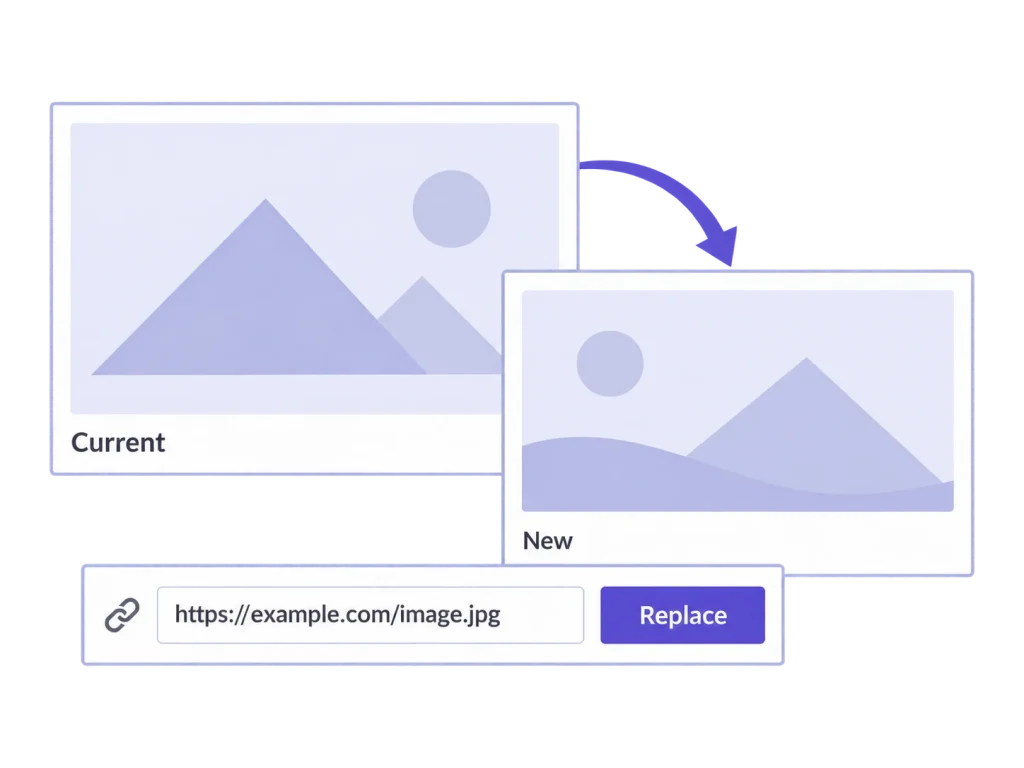
Use an intentional replacement when the existing image record is the one you want to keep.
Update the file behind an existing image instead of uploading another attachment and finding all the places that reference it.

Keep the attachment title, alt text, caption, description, and existing category assignments through the replacement.

Compare the old image with a local preview of the proposed replacement, including dimensions and file size, before committing.
A file selection is a preview. Replacement is a separate, deliberate action.
Access Replace Images through MediaToolkit in supported WordPress media workflows. Work from the attachment that should retain its identity.
Replace Images
Choose or drop the new image and compare it with the old one. Check its dimensions; the replacement must be large enough for the known image variants.
Old and new preview
Confirm the replacement. MediaToolkit preserves the main URL and image record, rebuilds current thumbnails, and keeps known historical size URLs reachable.
Image replacement
Replacement rebuilds thumbnails and clears saved custom crops. Keep a separate backup when you need the old image; external page and CDN caches may require clearing.
Two parts of a replacement deserve attention before the page goes back to work.
A campaign image may already be referenced in several places. Replacing the supported image keeps its main address and attachment ID, so those references can continue pointing to the same record. Check the live page afterward, including any caching outside WordPress.
Review the retained title, alt text, and caption after changing the image. Preserving those fields is useful when the subject stays the same; if the new visual changes the meaning, update its editorial text as a separate task.
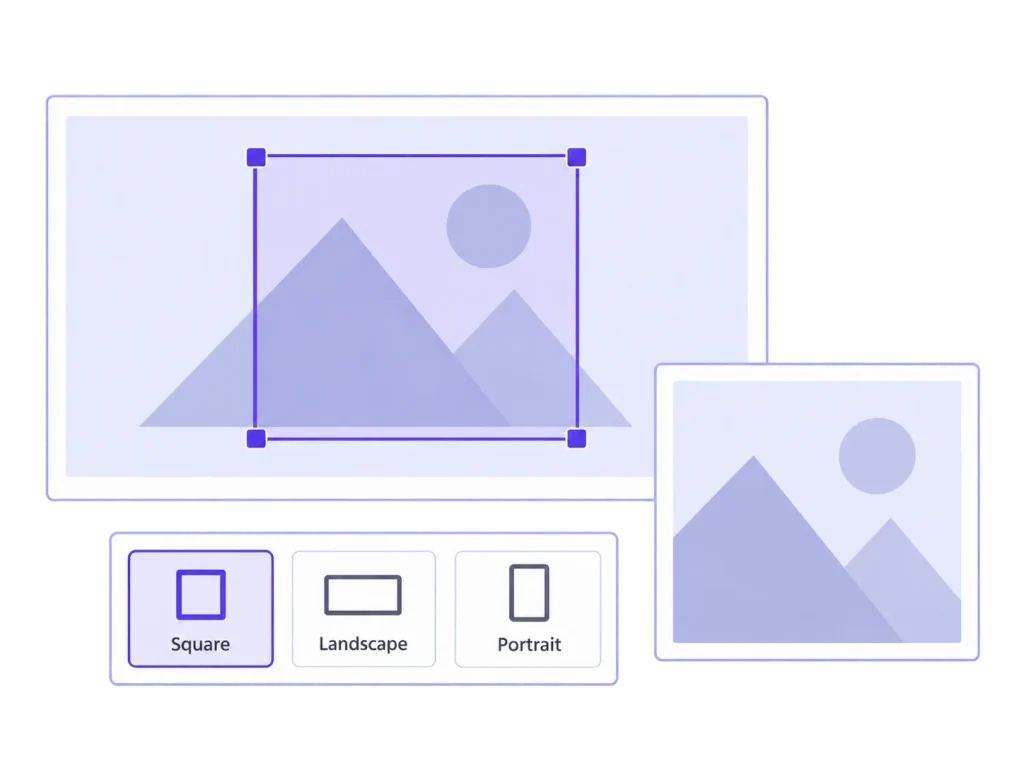
A new photo may put the subject somewhere else. Replacement creates fresh thumbnails and removes the old MediaToolkit crop recipes. Use the crop tools afterward to choose the right framing for each important size, rather than carrying an old composition into a different photo.
Check the card, header, and any other placement that uses this image. A single focal point may give several sizes a useful starting frame, while the tighter or wider variants can still need their own manual crop.
Static JPEG, PNG, WebP, and AVIF images in the same supported format as the existing image, where the server can process them. This is not a general document-replacement or format-conversion tool.
The main URL, attachment ID, title, alt text, caption, description, and category assignments are preserved. Image files, dimensions, and generated thumbnail content change.
Thumbnails are rebuilt and saved MediaToolkit crop recipes are removed. Review the new image and apply fresh crop choices where the composition needs them.
No. MediaToolkit does not automatically clear external page or CDN caches. Review the updated page and clear those caches through your existing tools when needed.
There is no permanent user undo for replacement. Keep an independent backup of the previous image if you need to return to it later.
Related workflows: Thumbnail cropping · Tools for marketing teams.