


The real image arrives late.
The placeholder fitted beautifully. The client's portrait needs a different crop to work in your finished card layout.
You design the page, build the site, and fix the images. MediaToolkit brings crop control, image sizes, and replacement into WordPress, so the small image jobs are easier to handle while you finish the project.
Built with love for

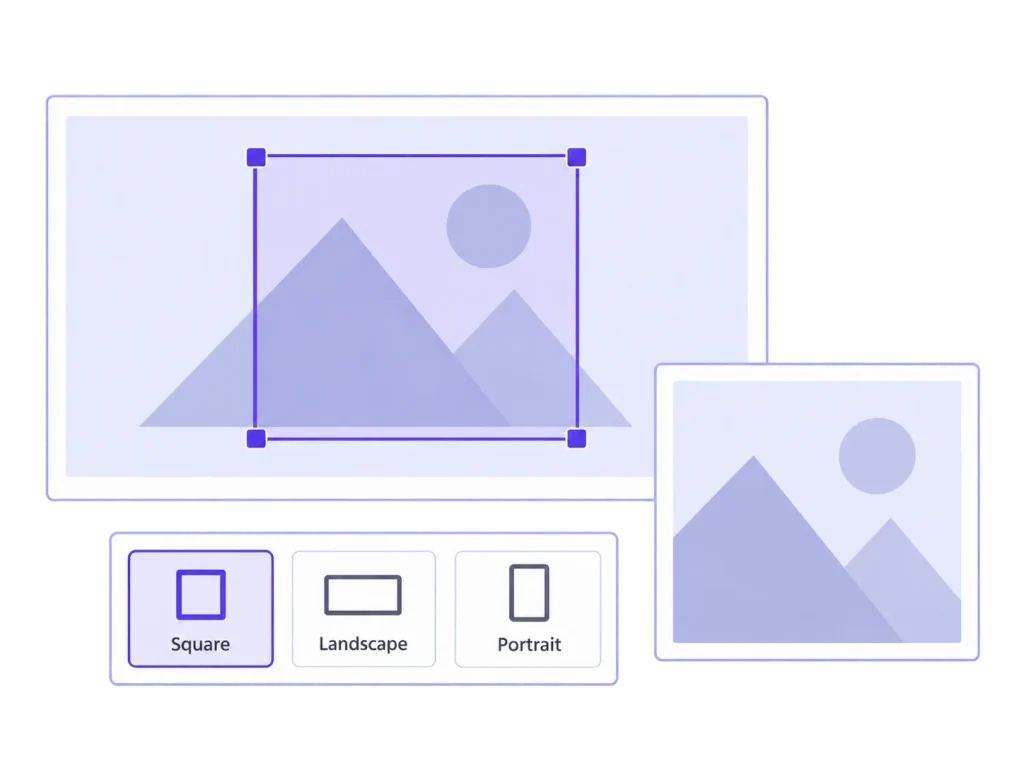
The design work is yours. So are the loose ends in the media library.
The placeholder fitted beautifully. The client's portrait needs a different crop to work in your finished card layout.

The new section calls for different dimensions. Older uploads do not yet have the thumbnail variant you need.

A replacement image arrives during the finishing pass. You need to make the update and get back to the page.
Use the right tool when an image task interrupts your build.
01 / While composing the page
Open the selected image, preview the available thumbnail shapes, and choose a crop for the size your layout uses. Set a focal point where it helps, with manual exceptions for individual sizes.
02 / When the design changes
Define custom dimensions and crop settings without editing another theme snippet for each new size. Generate missing thumbnails for older images; existing thumbnail files stay in place in that mode.
03 / During the final pass
Enable the modules the project needs. Replace supported images in the same format, and use ACF image or gallery access where those fields are part of your build.
Use MediaToolkit for recurring website image jobs. Keep original creative files and retouching in your existing editor.
Two practical ways to deal with the image work around a design change.
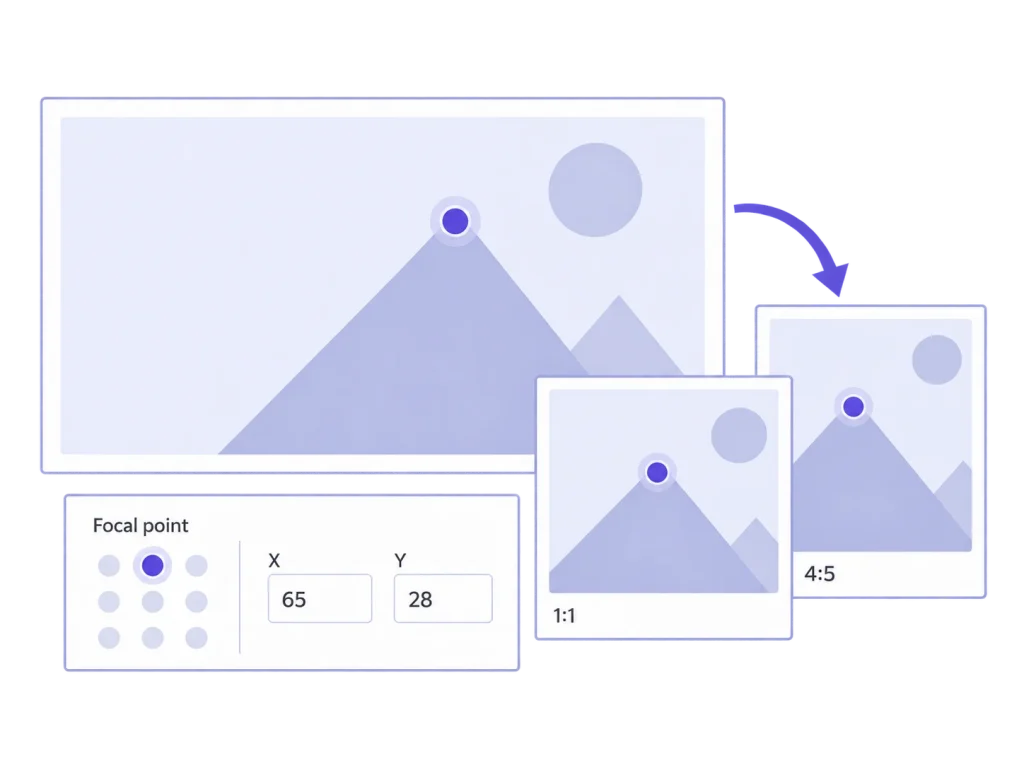
Set a focal point to preview how the subject lands across thumbnail shapes. Where a shape needs its own composition, save a manual crop. This changes generated thumbnails; check that the theme uses that size and does not crop it differently with CSS.
A saved crop belongs to the attachment and its thumbnail size, rather than one particular page. If several placements use that variant, they share the result. Review those placements together before settling on a composition, or give different layout requirements their own sizes.
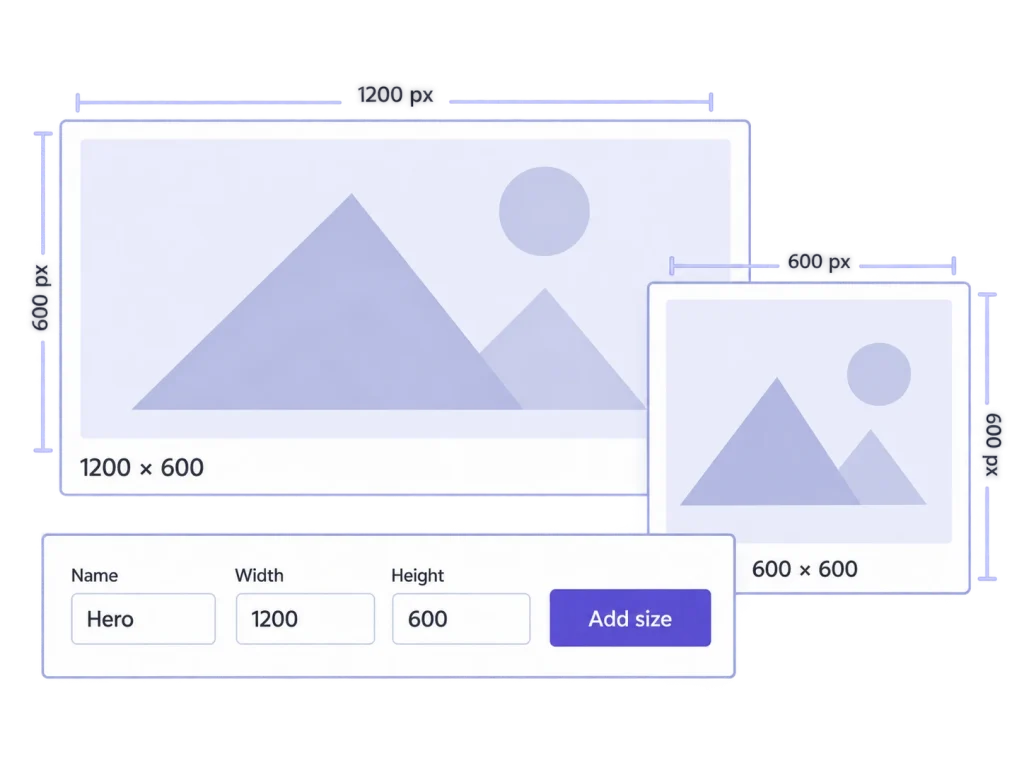
Create a named image size with the appropriate dimensions and crop behavior. Then generate the missing variants for the attachments you need. Saving a size definition alone does not regenerate older uploads or change which size your theme displays.
A size added during the build will not already exist for every older attachment. Choose representative images from the existing library and generate their missing variants. Check the new section with real client photography before treating the layout as finished.
Yes. The tools focus on the individual image and media tasks that come up while building a WordPress site. You can enable the modules you need without adopting a team workflow or a separate asset management system.
You can add custom dimensions and crop settings through MediaToolkit's image size settings. Your theme or template still needs to request the appropriate size. Adding a definition does not automatically redesign an existing image placement.
MediaToolkit controls generated thumbnail crops. If a theme displays an original image or applies its own CSS cropping, that placement may need a theme adjustment. Check the actual size and rendering used by the layout.
Regeneration can reuse valid manual crops and focal points saved with MediaToolkit. Source changes and new size definitions can affect the result. Generate Missing leaves existing thumbnail files unchanged; a full rebuild is a different operation.
The available yearly plans cover one, up to five, or up to 25 activated websites. Select the allowance that matches the sites you need now. Separately activated staging and development sites also count; contact us about a larger setup.
Related workflows: Replace an existing image · Tools for WordPress agencies.