


The empty alt text is easy to miss.
Filter for missing values in a chosen text field and bring the images needing a review into one table.
Find the gaps, edit alt text and titles, and work through captions and descriptions without opening a separate image dialog for every change.
Built with love for

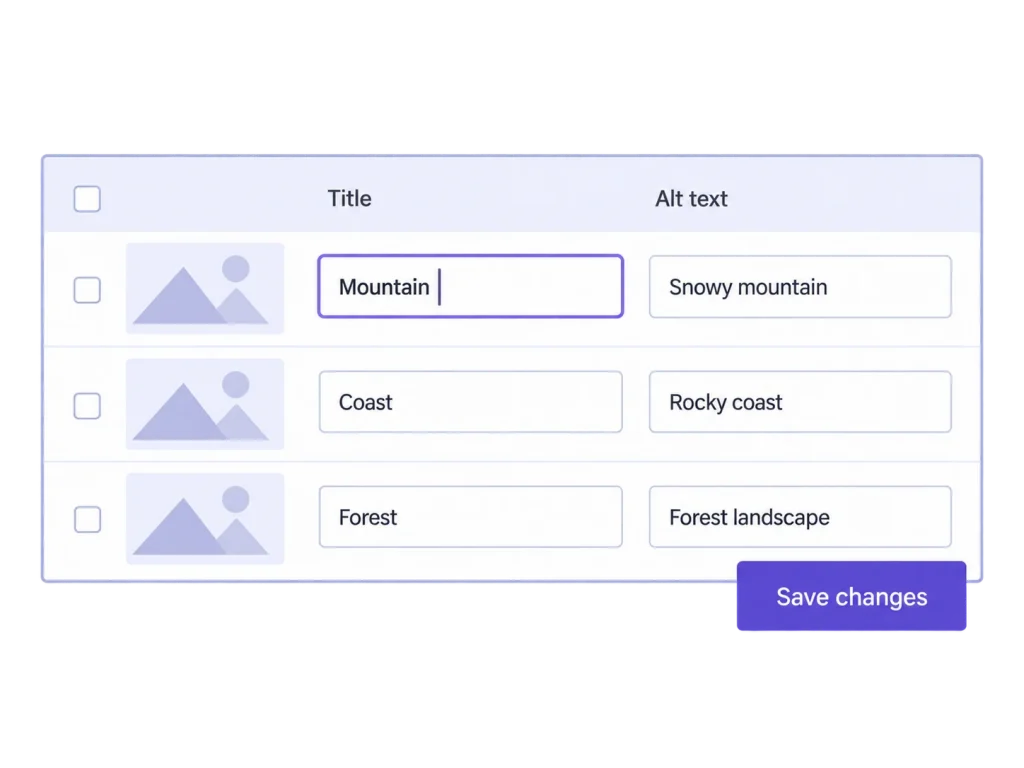
Give editorial image maintenance a view that suits more than one image.
Filter for missing values in a chosen text field and bring the images needing a review into one table.

Search filenames or image texts to find a relevant group, then review the actual words alongside each image preview.

Keep several changes in the same editing view and save the changed fields together when you are ready.
You supply the judgment. MediaToolkit gives the task a workable surface.
Search across filenames and texts, narrow the search to a specific field, or show images with an empty alt, title, caption, or description field.
Search and missing-field filters
Review the preview and update the relevant cells. Unsaved changes remain in the view as you move between its search results and pages.
Bulk Edit Image Texts
Save the changed images, including edits outside the current results page. Review any reported conflicts or errors before leaving the editing view.
Explicit save control
Changes apply to Media Library records. Text already stored in a post or page is not rewritten, and unsaved edits do not survive a page reload.
Use the table for a defined group of images and a clear text task.
Search the campaign name in filenames or existing image texts. Check the previews, write appropriate alt text, and bring titles and captions into the terminology your team uses. Save the changes together, then check any existing page content separately.
Use the explicit save action before reloading the page or moving to another screen. The table keeps pending edits across its own result pages and filters, but those edits are not a permanent draft saved for another session.
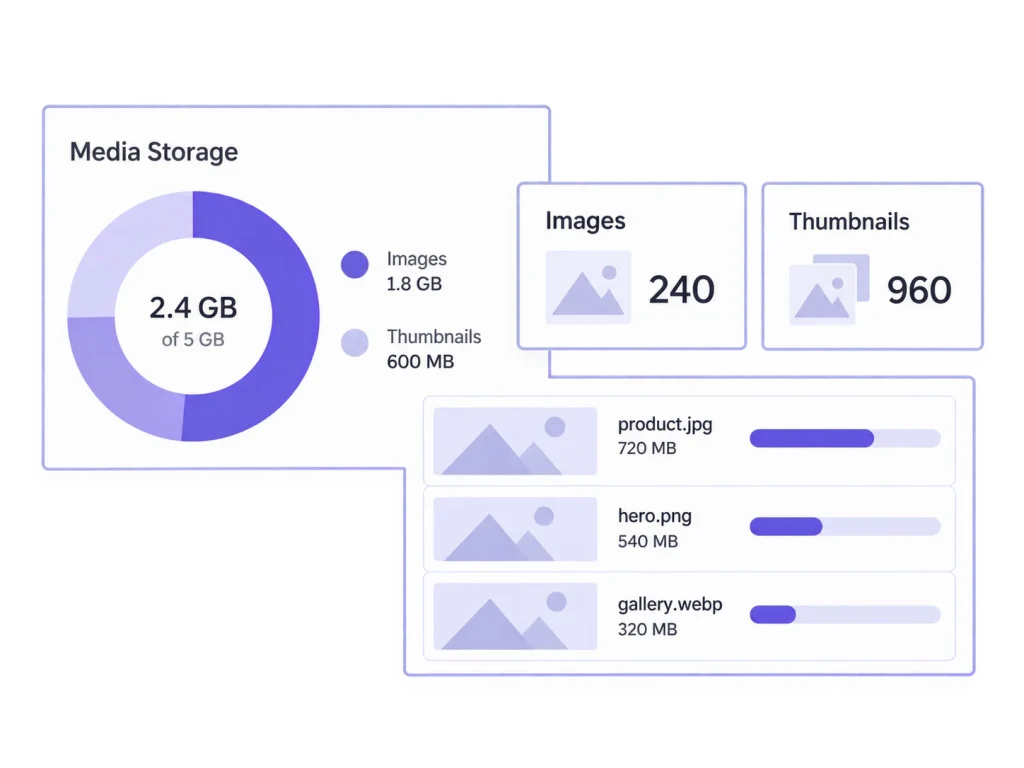
Media Insights can highlight missing alt text in the library. Use that overview to identify work, then use the text table and its empty-field filters to write the updates. Neither tool decides what a meaningful description should say.
Use the preview to identify the image, then consider how the website uses it before writing. A useful description explains the relevant content; copying a campaign label into every field does not provide that editorial judgment.
Alt text, image title, caption, and description. Caption and image caption refer to the same native WordPress field; the table does not invent an additional caption field.
No. You write and review the text. The table, search, and missing-field filters make manual editorial work easier to organize.
It updates the image record in the Media Library. A block or page may already contain a saved copy of the text, which this tool does not rewrite.
No. Editing an image title changes its WordPress title, not its filename or URL. File renaming is outside this feature.
There is no ranking or accessibility guarantee. Write text that suits the image and its use; a missing value is a prompt to review the context, not proof that every field needs words.
Related workflows: Tools for marketing teams · Tools for editorial teams.