



Crop Thumbnails
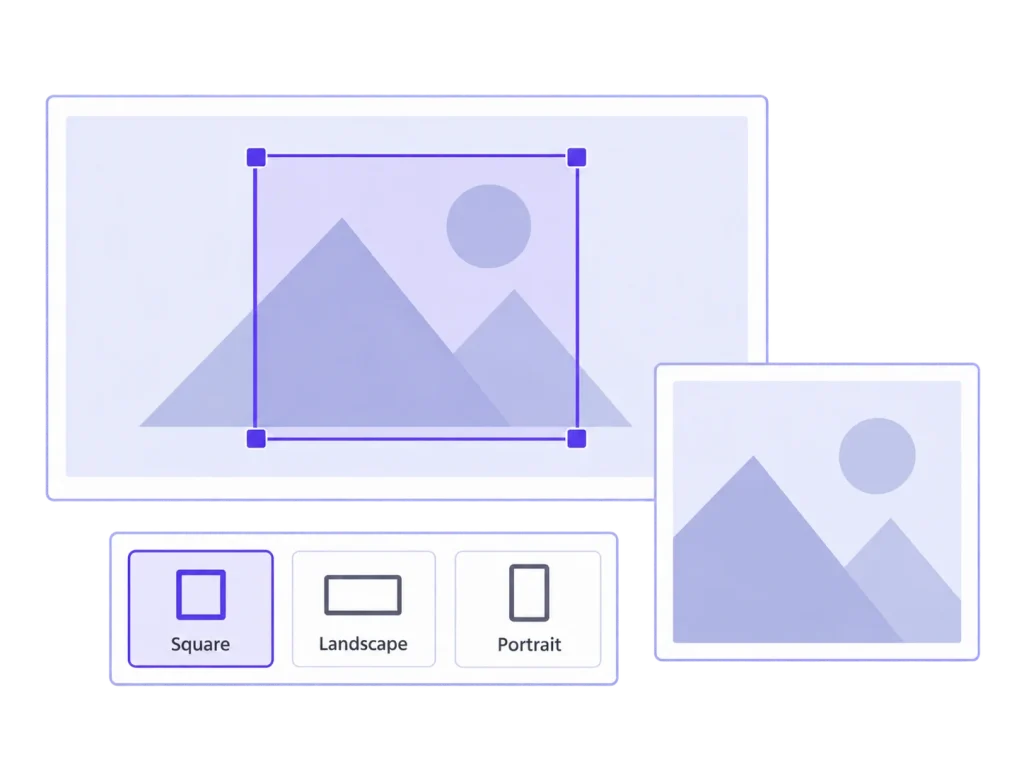
The face belongs in the thumbnail. Choose the crop for each image size, set a focal point, and fine-tune individual sizes when the composition needs it.
A cut-off subject. A library full of unfinished image texts. Another oversized upload. Handle the recurring fixes with one WordPress plugin, then get back to the page.
The face belongs in the thumbnail. Choose the crop for each image size, set a focal point, and fine-tune individual sizes when the composition needs it.
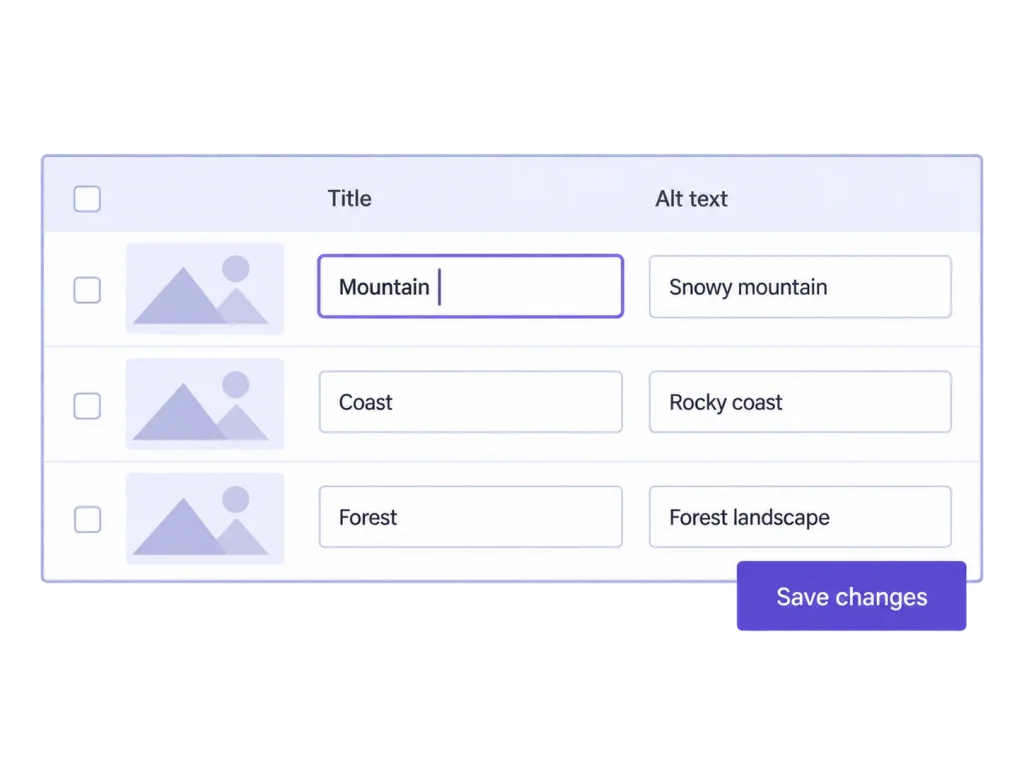

Your image texts. One table. Edit alt text, titles, captions, and descriptions across multiple images, then save your changes together. Updates apply to Media Library records, not text already saved in posts.
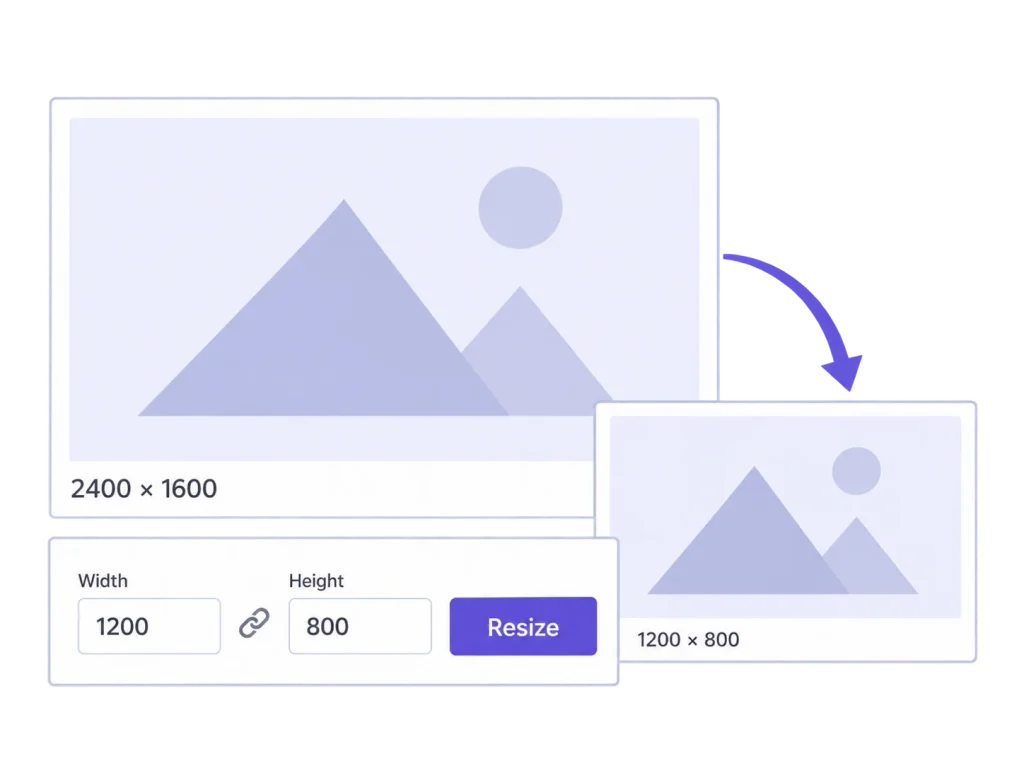

Put oversized uploads on a budget. Set maximum dimensions and an optional file size limit for individual images, bulk jobs, or new uploads. Stored originals are reduced too, so keep a separate backup if you need full resolution.

New image. Same place. Replace an image in the same supported format while keeping its main URL and image texts. Preview before saving; thumbnails are rebuilt and custom crops are replaced.

Give older uploads the sizes they need now. Generate missing thumbnails or rebuild selected sizes using valid crops and focal points saved with MediaToolkit.

Keep the dimensions. Work on the file weight. Optimize selected image sizes locally, see measured file savings, and restore eligible files from their optimization backups.

Find the image. Skip the scroll. Organize media with categories and subcategories, assign files to multiple categories, and update groups of items in bulk.

Give your layouts the sizes they need. Define custom dimensions and crop settings, review registered image sizes, and control which thumbnails get generated.

See what's taking up space. Scan your media library to review measured file sizes, find the largest images, and spot missing alt text or missing local files.

Give your images more format options. Generate additional WebP and AVIF files on supported servers. Automatic delivery of these versions on your website is not included yet.

Give repeat work a single starting point. Regenerate, resize, or optimize groups of images with progress tracking, pause and resume controls, and a history of completed jobs.

Keep image work close to your fields. Access the toolkit from ACF image and gallery workflows. Developers can configure which crop sizes are shown for a field.

One network. Less repeat setup. Apply a shared settings template across your active sites and roll out licenses from Network Admin. Each site keeps its own media library and can still adjust its settings.
For the people who build, edit, and maintain WordPress sites. Take control of the image details that make a page feel finished.
A square card and a wide banner need different crops. Choose the part of the photo that works for each thumbnail size, right inside WordPress. Keep the subject in frame and the original image intact.
Point to what matters, then preview the result across your thumbnail sizes. Fine-tune individual crops when the layout needs a different composition. Your manual choices take priority over the focal point.
New image sizes don't have to mean starting over. Rebuild thumbnails using valid crops and focal points saved with MediaToolkit, or generate only the missing sizes and leave existing thumbnails untouched.
Twenty image titles shouldn't mean twenty dialogs. Edit titles, alt text, captions, and descriptions across multiple images in one table, with previews and filenames to keep you oriented.
Find the images that need your attention. Search by filename or image text, focus on a specific field, or filter for empty values. Spend your time improving the texts instead of hunting for them.
Move through searches and pages without losing your unsaved edits, then save the changes together. Updates apply to your Media Library records; text already placed in posts and pages stays unchanged.
Your website rarely needs every pixel your camera can capture. Set maximum width and height, add an optional file size limit, and reduce oversized source images while keeping their proportions.
Choose your limits once and enable automatic resizing for new uploads. Give editors a consistent starting point for image dimensions, with less manual resizing after each upload.
Bring existing uploads under the same rules, one image at a time or in bulk. Main image URLs and existing thumbnails stay in place. Resizing reduces stored originals too; keep a separate backup if you need full resolution.