


The filename is not enough.
Campaigns, departments, and reusable assets do not fit neatly into upload dates. Group media using meaningful categories.
Give your media library categories that match your work, assign groups of files together, and use Media Insights to see what needs attention.
Built with love for

A library needs an organizing scheme and a way to inspect the files behind it.
Campaigns, departments, and reusable assets do not fit neatly into upload dates. Group media using meaningful categories.
Assign media to more than one category, so a shared asset can fit the different ways your team looks for it.

Scan for measured sizes, large images, missing alt text, and missing local files before deciding what work to do.
Build a way of finding media that still makes sense after the next campaign.
Create categories and subcategories around projects, content areas, or asset types. A default upload category can give new media a starting point.
Media Categories
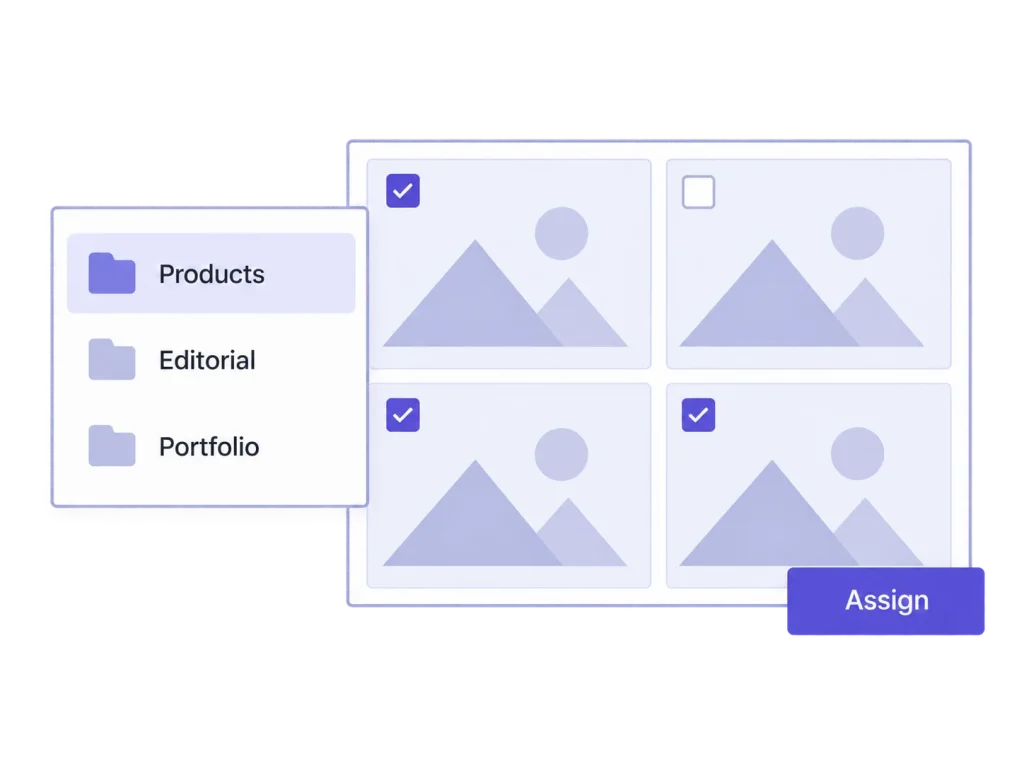
Assign categories to a selection of files and use category filters to narrow the library. Reuse an asset across categories without uploading another copy just to organize it.
Bulk category assignment
Use Media Insights to review the measured library and identify large images or missing text and local files. Choose the appropriate editing tool for the issue.
Media Insights
Categories organize WordPress media records. They do not move files into physical folders or change the files’ URLs.
These are related jobs, with different views of the same media library.
Create a campaign category with subcategories where they help your team. Add selected images and other media to the relevant groups. Give a reusable brand image both its brand category and the campaign category, while retaining the same file and attachment record.
Choose category names around the way your team asks for assets, then apply that convention consistently. Review the hierarchy before adding another nearly identical category, so the structure remains useful when someone else searches the library.
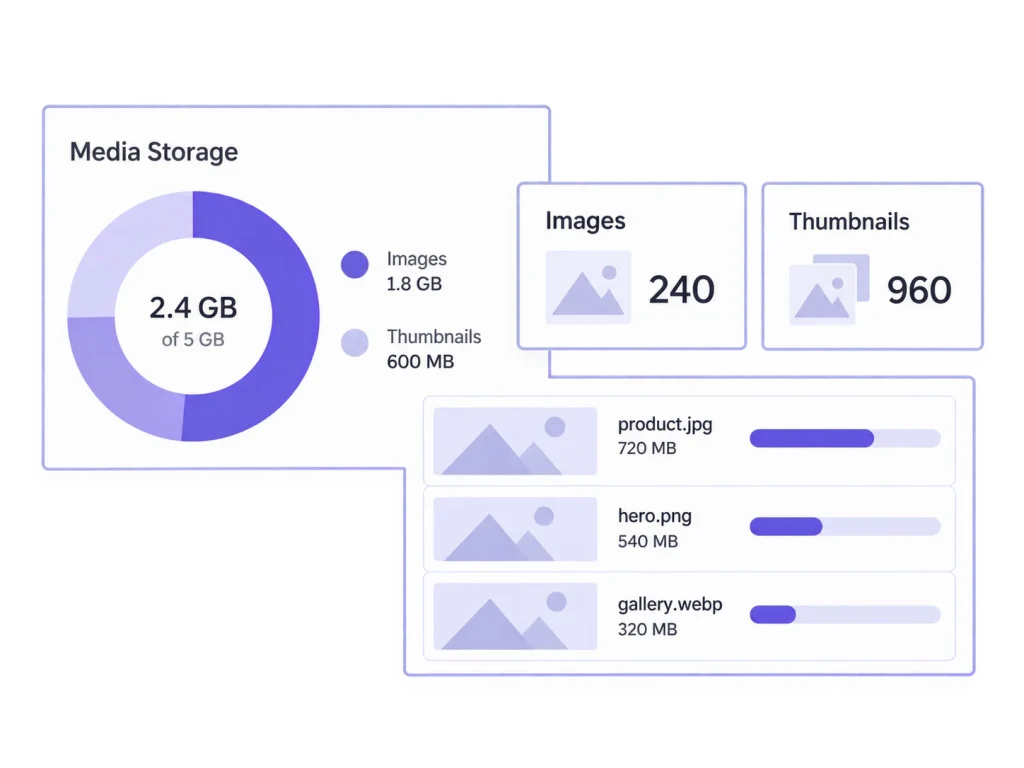
Find a large image in Media Insights and decide whether it needs resizing or optimization. Review missing alt text before writing an update. A report helps you choose what to fix; it does not decide that a file is unused or safe to delete.
Run a fresh scan after completing a maintenance pass so your next decision uses current measurements. Review remaining large files and missing information separately; a smaller file and a complete text field answer different questions about the library.
No. They are hierarchical labels attached to media records. They do not relocate files on the server or create a physical folder structure.
Yes. Assign a media item to more than one category and use subcategories to add structure. You do not need a separate uploaded copy for each group.
Media categories can organize other media types too. The toolkit’s crop, resize, optimization, and replacement operations remain image tools with their own supported formats.
No. It reports measured file sizes and specific review candidates such as missing alt text or local files. It is not an automatic unused-media detector or deletion tool.
Categorizing a media record does not move its underlying file or change its URL. Organization is separate from editing, replacing, or reducing an image.
Related workflows: Bulk edit image texts · MediaToolkit for marketing teams.