


Too many pixels for the job.
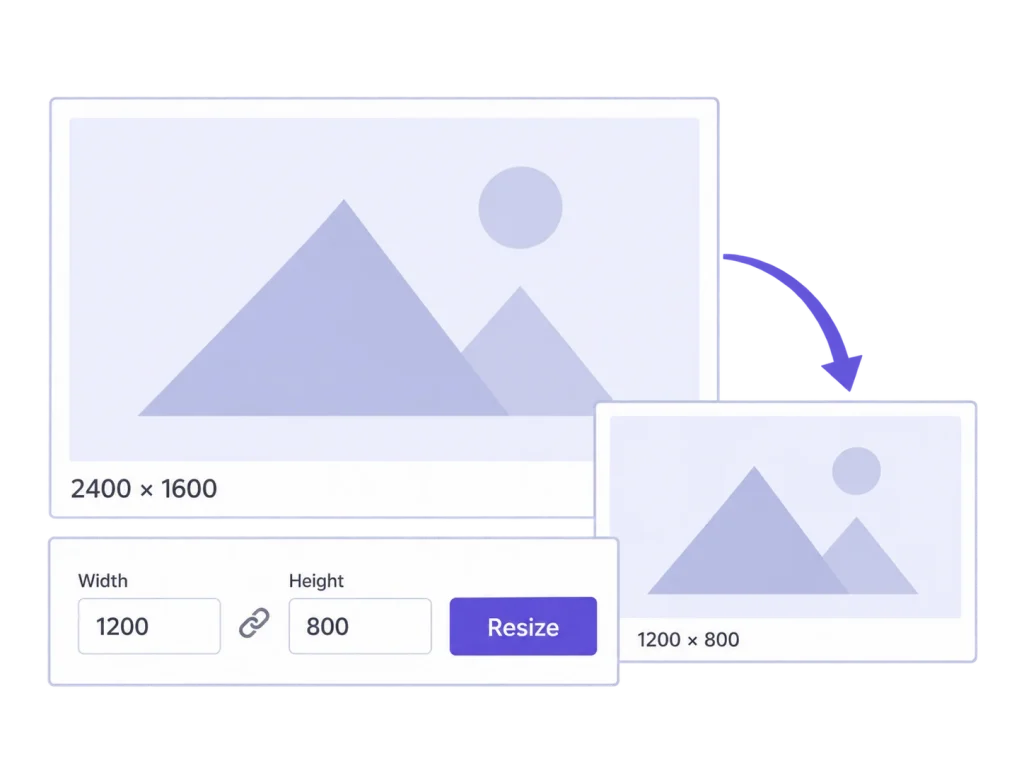
Reduce source dimensions proportionally with maximum width and height limits. Resize can also use an optional file-size target.
Set dimension limits, reduce supported images individually or in bulk, and use image optimization to work on file weight inside WordPress.
Built with love for

Choose the operation around the file you have and the result you need.
Reduce source dimensions proportionally with maximum width and height limits. Resize can also use an optional file-size target.

Optimize selected image sizes while retaining their dimensions. Check the measured file saving for the actual result.

Enable automatic resize rules for supported new uploads, so the same dimensional limits do not depend on another manual pass.
Work through existing images, then decide what should happen to future uploads.
Scan the library with Media Insights to see measured image sizes and the largest files. Use that information to choose the next image or group to work on.
Media Insights
Use Resize for proportional dimensional reduction, or Optimize for file weight at the existing dimensions. Bulk jobs provide progress, pause and resume controls, and a history.
Resize Images and Optimize Images
Set and deliberately enable upload-resize limits where they suit the site. Check server support before adding optional WebP or AVIF file generation.
Automatic Upload Resizing
Resize reduces stored originals and editor backups too, without keeping a high-resolution undo copy. Keep a separate backup when you need the full-resolution source.
A useful file policy covers existing material and the way new images arrive.
Choose maximum dimensions for supported images and apply them to an individual image or a bulk selection. Existing thumbnail files stay unchanged during Resize. Future crops and regenerated variants will depend on the smaller source you have chosen to keep.
Before reducing an archive, consider the largest future placement you expect to support. Resize also reduces stored originals and editor backups, so save an independent full-resolution copy when that source may be needed for later layouts.
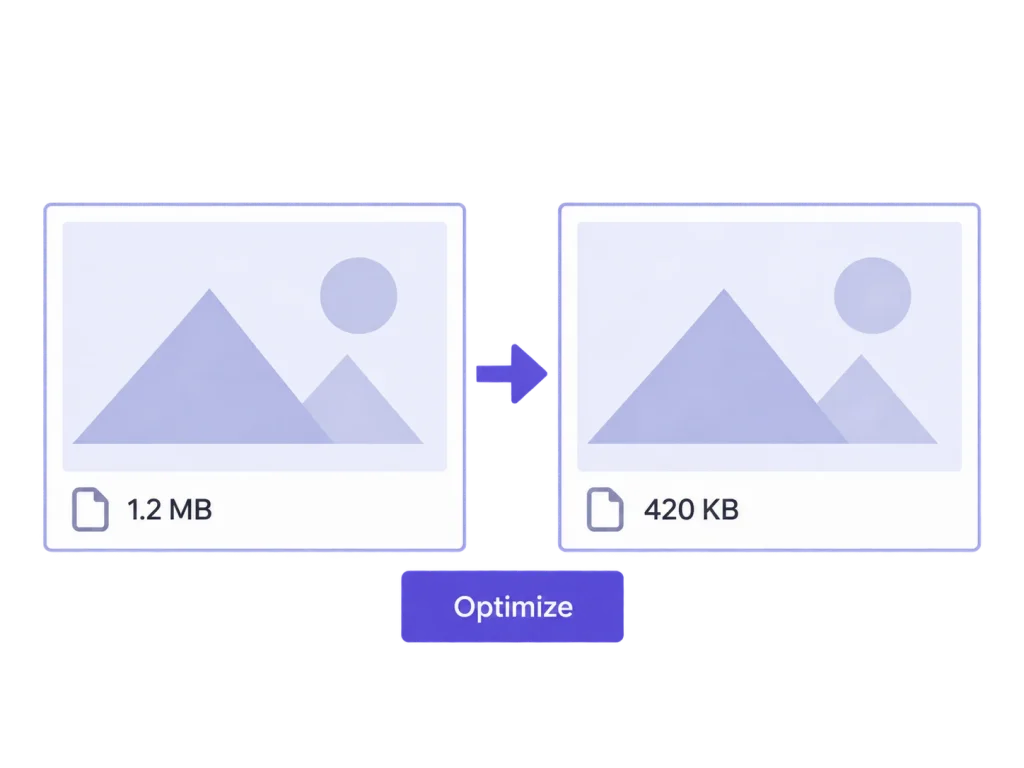
Optimize selected sizes and review the measured file saving. Eligible optimization backups can restore those optimized files. That restore applies to optimization work; it does not reverse a separate Resize or Replace operation.
Read the measured saving as the change to the processed image files. Optimization backups also take space. Decide what matters for this job, such as the file used on a page, rather than treating compression as automatic library cleanup.
Resize reduces dimensions proportionally and can apply an optional byte limit. Optimize works on file weight for selected image sizes while keeping their dimensions. Neither guarantees a fixed saving.
Resize also reduces stored originals and editor backups. It does not retain a high-resolution undo copy, so keep an independent backup before using it when the original resolution matters.
No. MediaToolkit can generate additional format files when your server supports the required encoders. Automatic front-end delivery, CDN routing, and picture markup are not included.
No. Provider adapters require your own account and credentials with the relevant service. Local optimization is available separately; provider credits are not part of your MediaToolkit subscription.
No. The source, format, processing support, and minimum dimensions can make a target unreachable. An unsuccessful target is reported rather than a guaranteed reduction being promised.
Related workflows: Library organization · Image sizes and regeneration.