


The old image is still there.
A fresh photograph is approved, but swapping media references across your pages makes a simple update feel larger than it should.
Update the team photo, prepare the campaign crop, and review the image texts without turning every media task into a separate request. MediaToolkit puts practical image tools inside the WordPress website you already maintain.
Built with love for

Campaigns, people, and product messaging keep moving. The media library has to keep up.
A fresh photograph is approved, but swapping media references across your pages makes a simple update feel larger than it should.

Several campaigns share the same library. Finding the right image gets harder as the collection grows.

The source is ready for a billboard. Your website needs dimensions that suit the page.
Handle the images around a campaign without starting a new media library for every update.
01 / Campaign preparation
Choose the thumbnail size, set the crop, and preview the framing. Keep the product or person visible in the generated image, then check how the actual page presents it.
02 / Content refresh
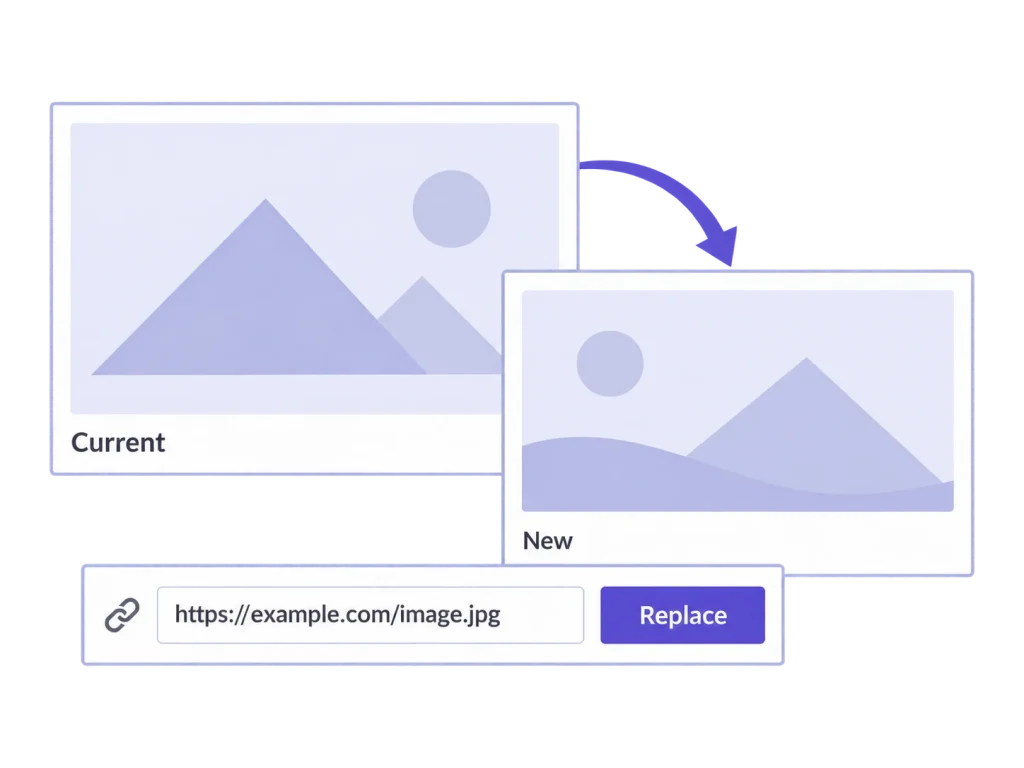
Replace a supported image in the same format and keep its main URL. Review its image texts in the table, including fields that were missed when it was first uploaded.
03 / Library upkeep
Assign media categories by campaign or content purpose, with multiple categories where useful. Set optional resize rules for future supported uploads, and use Media Insights to identify files worth reviewing.
You choose the crops, words, and categories. MediaToolkit gives your team practical controls for carrying out those decisions.
Keep image work close to the content it supports.
Compare the existing and replacement images before saving. Keeping the attachment ID and main URL can simplify a routine refresh. Replacement rebuilds thumbnails and replaces custom crops, so review the new framing and clear external caches where necessary.
A new team photograph may show different people or a different setting. Read the retained title, alt text, caption, and description against the replacement. Update the media record where needed, then check any wording already stored in the pages that use it.
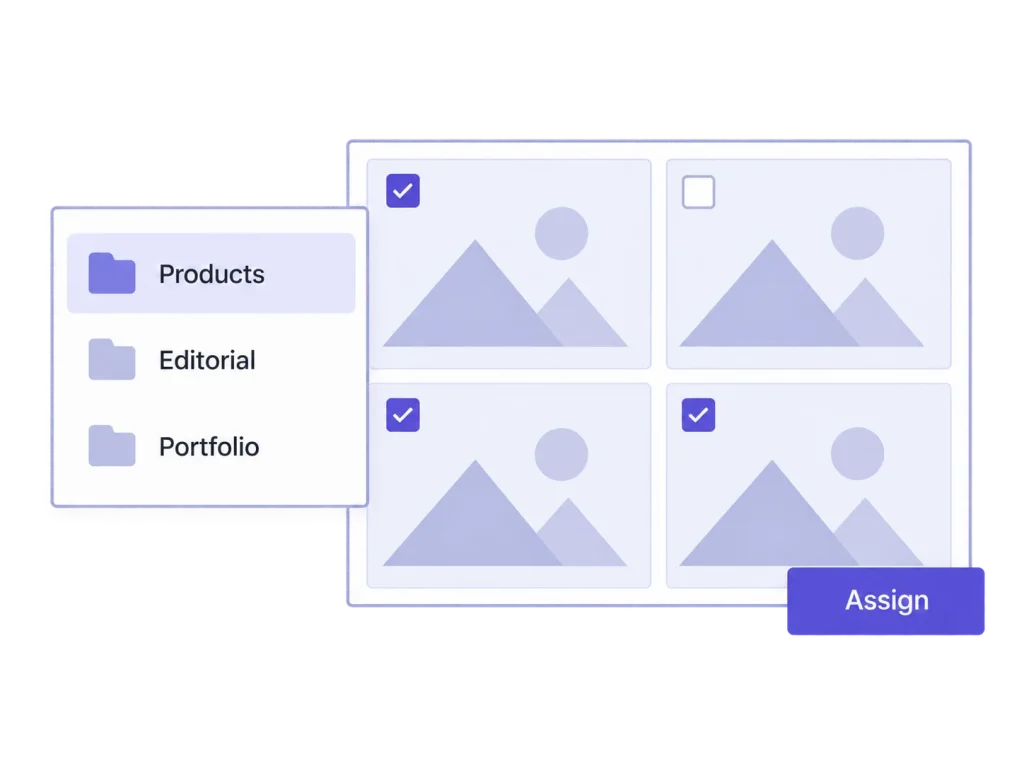
Create categories and subcategories that reflect how your team finds media. Apply them to groups of files and assign one asset to several categories. These are media labels inside WordPress; file locations and URLs do not change.
Give the team an organizing scheme they can recognize: campaign, content purpose, or reusable brand assets. Use subcategories where the distinction helps. A shared photograph can belong to several groups, so its category assignments can reflect more than one marketing use.
MediaToolkit adds controls inside WordPress for thumbnail crops, image replacement, resizing, and image texts. It is useful for those website tasks. Detailed retouching, design compositions, and full photo editing still belong in the creative tools your team uses.
Yes. Media categories support multiple assignments and subcategories. You can categorize groups of attachments together and filter the library by category. Categorization does not move files into physical folders or change their URLs.
Image Texts updates Media Library records. It does not rewrite text already stored in posts, pages, or image blocks. Review those placements separately when a campaign update needs different wording there too.
Yes. Optional upload rules apply resize limits to supported new uploads. Resizing also reduces stored originals, so keep your full-resolution campaign masters separately when you need them for print or future creative work.
Choose by the number of activated WordPress websites, rather than a separate feature tier. Personal covers one, Professional up to five, and Agency up to 25. All are yearly subscriptions with Media Insights, updates, and email support included.
Related workflows: Resize and optimize images · Thumbnail crops and focal points.